Open topic with navigation
View Existing Cell
Use the View Existing Cell option
to see detailed information (the geography, demographic overlay, and sample
generation history) about cells created for a project.
- Click the View
Existing Cells button
 .
.
-- or --
On the Cell
menu, click View Existing Cell.
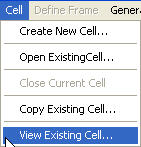
A View Existing
Cells dialog box opens, which lists all cells created for the current
open project.
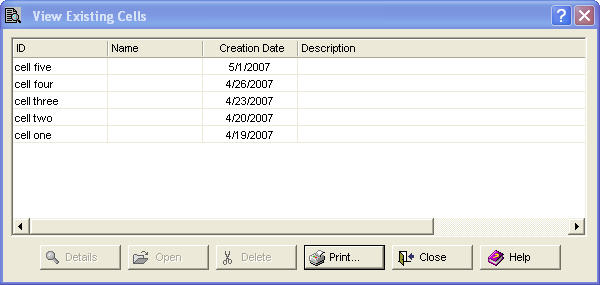
- Click
once on a column header to sort cells on any of the column names -- ID, Name,
Creation Date, Description.
Click again on the same column header to change the direction of the sort
(ascending or descending).
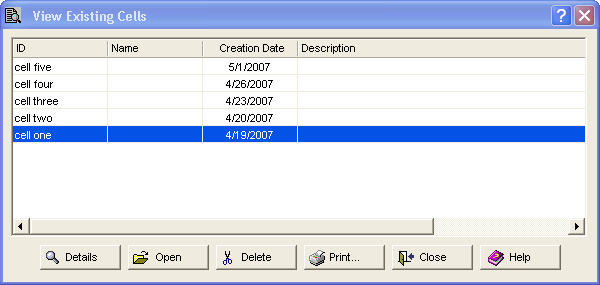
- To view specific details for a cell, click in
the cell row to select it, then click Details
 .
.
A Cell Information
dialog box opens. The GEO Definition
tab is selected.
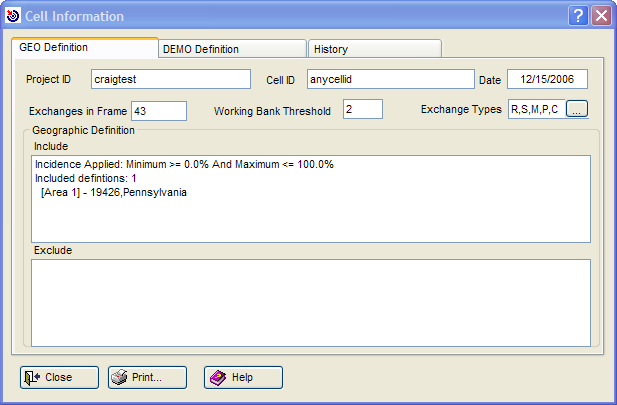
The GEO and DEMO Definition
tabs show the parameters used to define the cell. In the previous example,
"[Area 1] - 19426,Pennsylvania" was used to define the geographic area included
for the cell. If an area had been excluded, it would have been displayed
in the Exclude
box.
Click the History
tab.
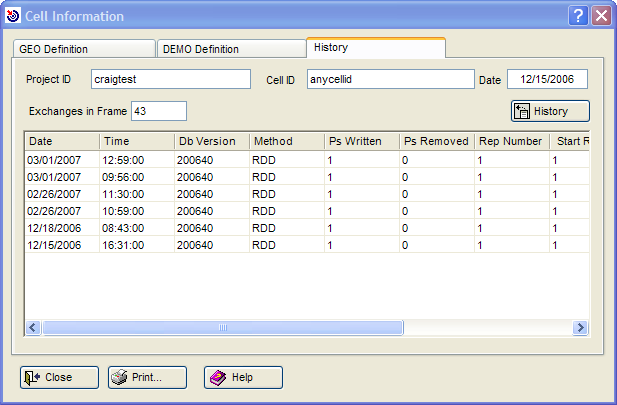
History
displays the information recorded each time a sample is generated for
that cell:
- Date generated
- Time generated
- Database Version used
- Method of generation
- Ps Written -- number of pieces generated
- Ps Removed -- number of pieces removed
- Rep Number -- number of replicates
- Start Rep -- starting replicate number
- BP -- if the sample was Business Purged
- Ps Purged -- how many pieces were purged
- WB -- the Working Bank threshold used
Open topic with navigation